
Your Nextcloud on your own (sub)domain, such as cloud.yourcompany.nl
By default, your WebOké Nextcloud runs on an address like yourname.webokecloud.nl. Would you rather have your own address, like cloud.yourcompany.nl? You can set that up yourself from My WebOké. In this article you'll read how.
Which packages support this?
A custom domain is available with the paid Nextcloud packages. It's not possible with Nextcloud Free: that account always stays on free.webokecloud.nl. A custom domain costs a small extra amount per term. You'll see the amount in advance in My WebOké. That also applies to Nextcloud Personal.
Step 1: point the address to your Nextcloud
- Log in to My WebOké, go to My Products and open your Nextcloud package.
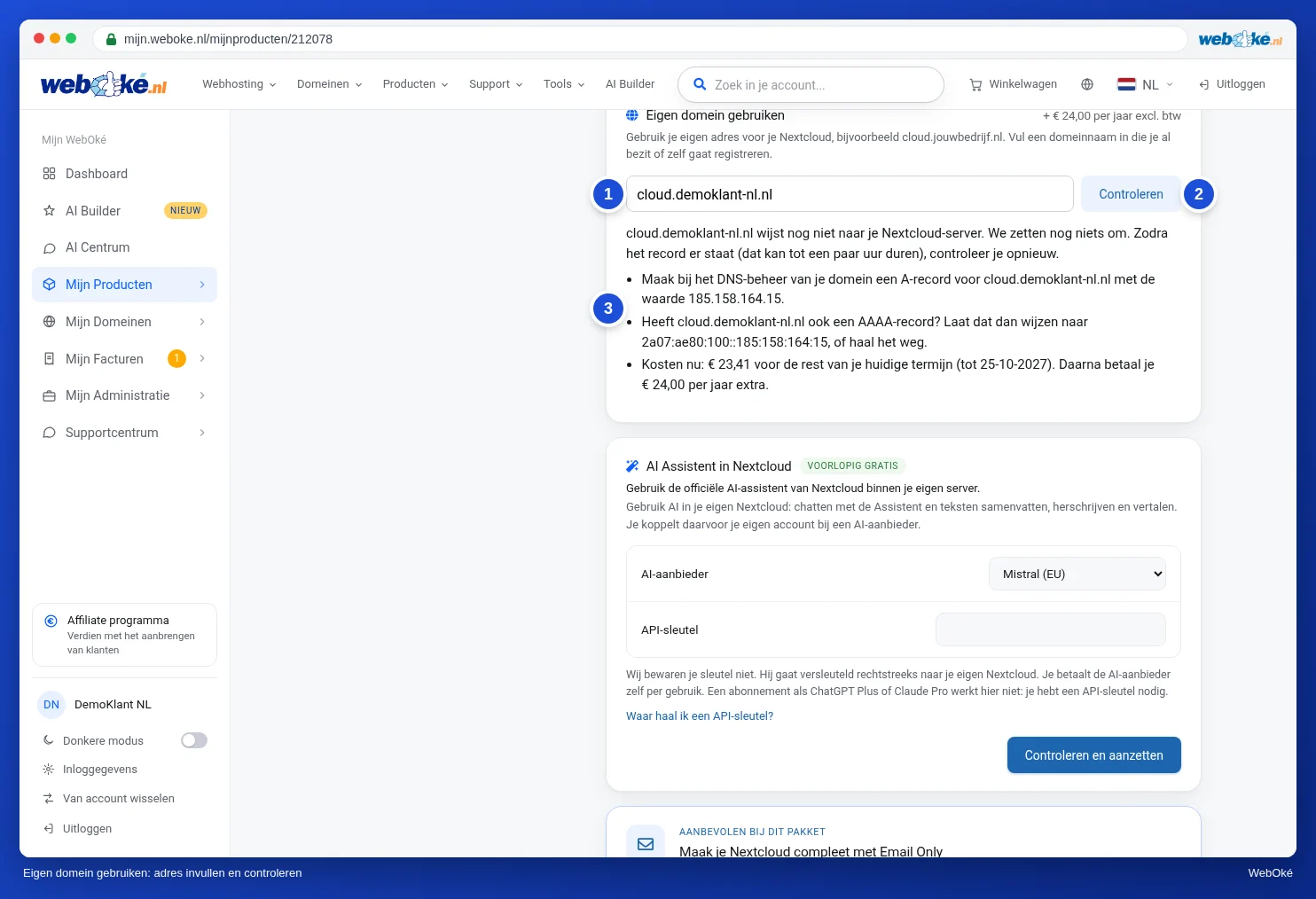
- On the Use custom domain card, enter the address you want, for example cloud.yourcompany.nl, and click Check.
- You'll now see which record you need to create: an A record for that address with the IP address of your Nextcloud server.
- Create that A record in the DNS management of your domain. If your domain is with WebOké, you do this in My WebOké, see Managing DNS records in My WebOké. If the DNS is elsewhere, you create the record with that provider.
Type: A Name: cloud Value: (the IP address shown on the card)
Step 2: switch over your Nextcloud
- Wait until the record is active. This can take up to a few hours. Then click Check again.
- If the address points to your Nextcloud server, you'll see what it costs: an amount for the rest of your current term, and after that the amount added per term.
- Confirm that you understand this can't be undone and click Set up custom domain.
The switch takes a few minutes. During that time, your Nextcloud will be briefly unavailable. After that, we automatically create a security certificate, so you'll see the padlock in your browser. If the switch fails, nothing changes and you don't pay anything.
What happens to the old address?
Your old address on webokecloud.nl keeps working and redirects to your new address. Shared links, the desktop app, and the apps on your phone will therefore keep working. Your username, password, app passwords, and files stay the same.
Still, at a convenient moment, update the new address everywhere so you don't depend on the redirect. You can read which apps and devices to check in Moving your Nextcloud to a custom domain: what should you update in apps afterwards?. Do you have colleagues or family members on your Nextcloud? Send them the new address.
Detailed explanation: Your Nextcloud on a custom domain (cloud.yourcompany.nl) in the Nextcloud manual.