
Chapter 2 · 2.1
The screen at a glance
After logging in, you see your Inbox. The screen is made up of a few fixed parts. Once you know them, you can quickly find everything.
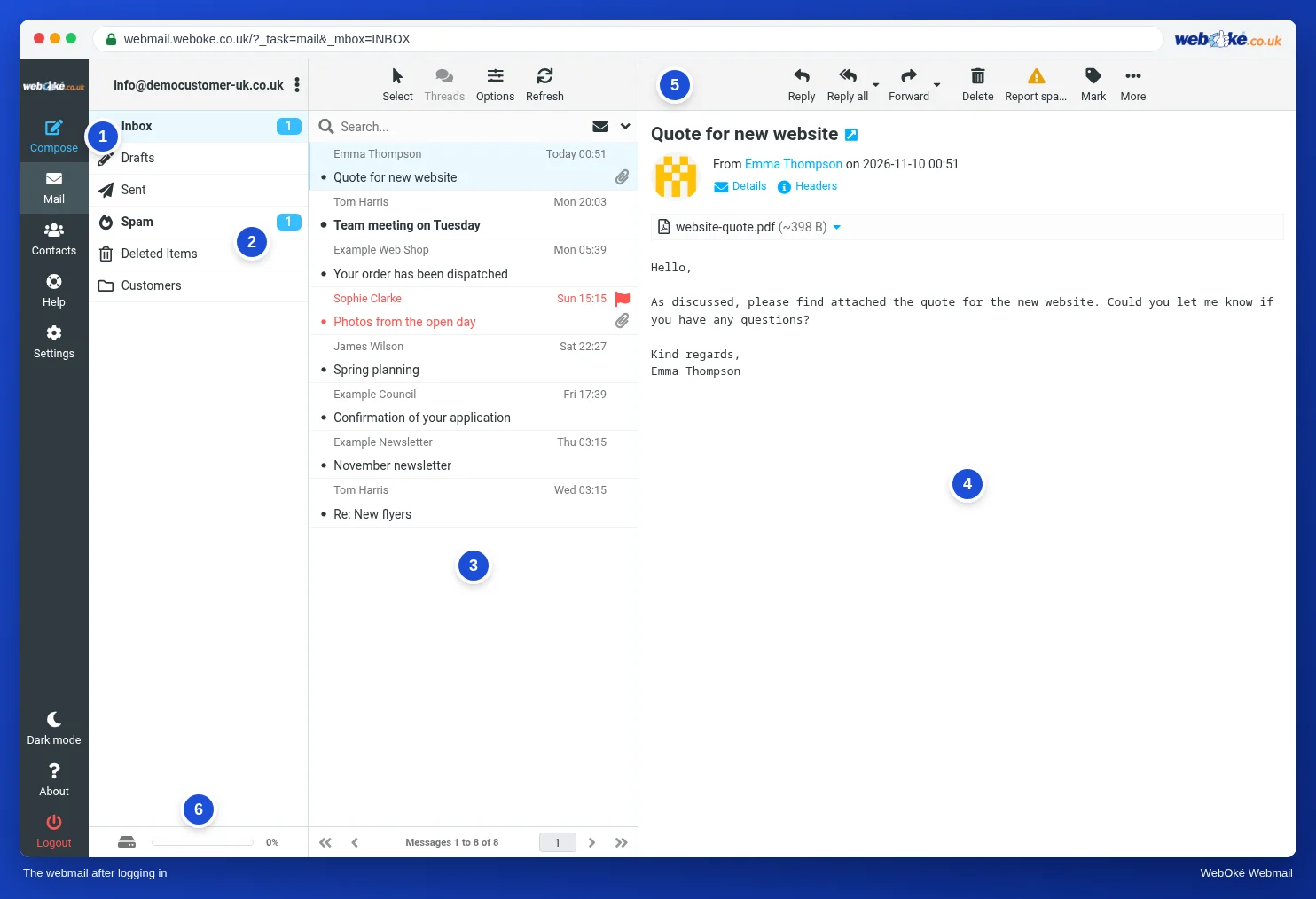
| Part | What do you use it for? |
|---|---|
| (1) The menu | On the far left. Compose for a new message, Mail, Contacts (your address book), Help and Settings. At the bottom you'll find Dark mode, About and Logout. |
| (2) The folders | Inbox, Drafts, Sent, Deleted Items and your own folders. The number next to a folder is the number of unread messages. |
| (3) The message list | The messages in the selected folder. At the top you'll find Select, Threads, Options and Refresh, plus the search box. |
| (4) The message | Click a message in the list to see it here. |
| (5) The buttons | Reply, Reply all, Forward, Delete, Report spam, Mark and More. |
| (6) Storage | The bar at the bottom left shows how full your mailbox is. See Your mailbox is full. |
Work faster with right-click
Right-click a message or a folder. You'll get a menu with the most common actions, such as replying, marking, moving and deleting.
Dragging
Drag a message to a folder in the folder list to move it. Hold down Ctrl (on a Mac Cmd) to select several messages at once.
On a smaller screen
If your window is narrow, some parts are hidden behind a button. On your phone, you first see only the list. See Webmail on your phone or tablet.
Want to learn more? Take the free course Using webmail, lesson 2.1 Setting up the screen your way.