
Chapter 5 · 5.11
The transfer centre: transferring domains to WebOké
Watch it in a short video
You order a domain transfer to WebOké via the website, using the + Register or transfer button at the top right of My Domains. You can read how to place that order in Transferring a domain to WebOké (transfer code or transfer later). After that, you follow the transfer in the Transfer centre.
Go to My Domains and click the Transfer centre tab.
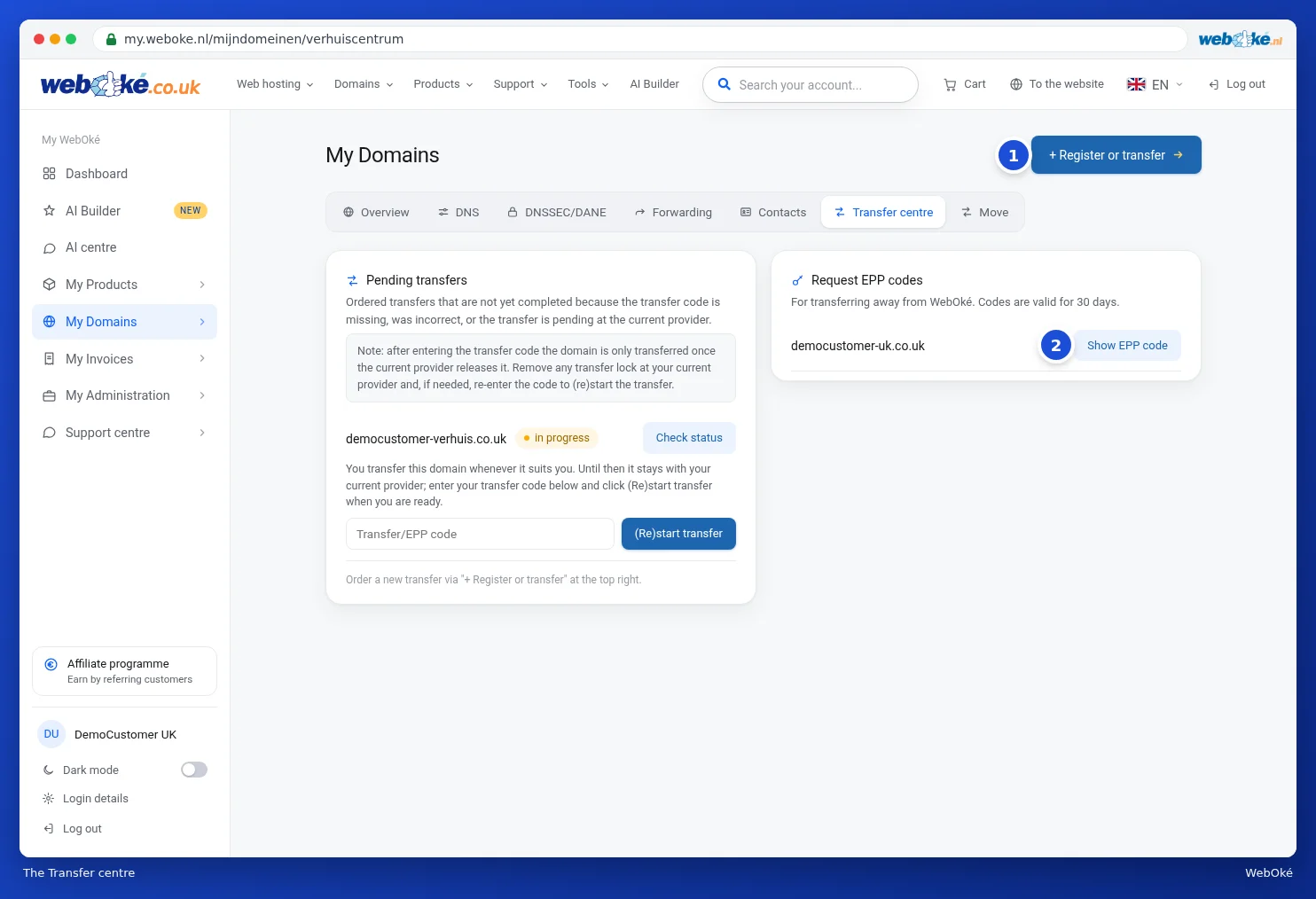
Pending transfers
On the left you see the transfers you've ordered that haven't been completed yet. This happens if the transfer code is missing or incorrect, or if the transfer is still waiting at your current provider. For each domain you see:
- the transfer code you entered;
- a Transfer/EPP code field to enter the code (again);
- the (Re)start transfer button;
- the Check status button, which checks with the registry how far the transfer has progressed.
Did you choose to transfer later when placing your order? Then the domain stays with your current provider until you're ready. Enter the transfer code and click (Re)start transfer whenever it suits you.
The video with this article shows you how to get from your domain page to the Transfer centre and enter the transfer code there.
(Re)starting a transfer
- Request the transfer code (EPP code or authorisation code) from your current provider.
- Also remove any transfer lock on the domain there.
- Enter the code in the Transfer centre under Transfer/EPP code.
- Click (Re)start transfer.
Please note: after entering the transfer code the domain is only transferred once your current provider releases it. A transfer may therefore take some time. If it fails, you'll see this next to the domain. In that case, check the code and the transfer lock and restart the transfer.
If nothing is pending, you'll see No pending transfers.
Requesting EPP codes
On the right of the Transfer centre you'll find your domains with the Show EPP code button (2). You'll need this if you want to transfer a domain away from WebOké. You can read about this in Transferring a domain away: transfer code (EPP) and transfer lock.
Tip: are you also transferring your website and email? Then read Migrating email to WebOké (including from Microsoft 365) for transferring your email, and check out the handy tools in Testing your website before a move to find out how to test your website before switching the DNS.