
Chapter 2 · 2.11
Registering or transferring many domains at once
Do you want to order or transfer many domains to WebOké at once? Then you don't need to search for them one by one. Paste your whole list on the Bulk register/transfer page. You'll see straight away, for each domain, whether it's available, what it costs and which details are still needed. Then you add them all to the shopping cart in one go.
You'll find the page in the Domains menu on the website, and in My WebOké under My Domains. You can check up to 500 domains at once.
Step 1: paste your domains
- Go to Domains in the menu and click Bulk register/transfer.
- Paste your domains into the text field (1). Put each one on its own line, or separate them with a space, comma or semicolon.
- Already have transfer codes? Put the code after the domain on the same line, for example
mycompany.nl ABCD1234EFGH. The code will then be filled in straight away. - Click Check (2).
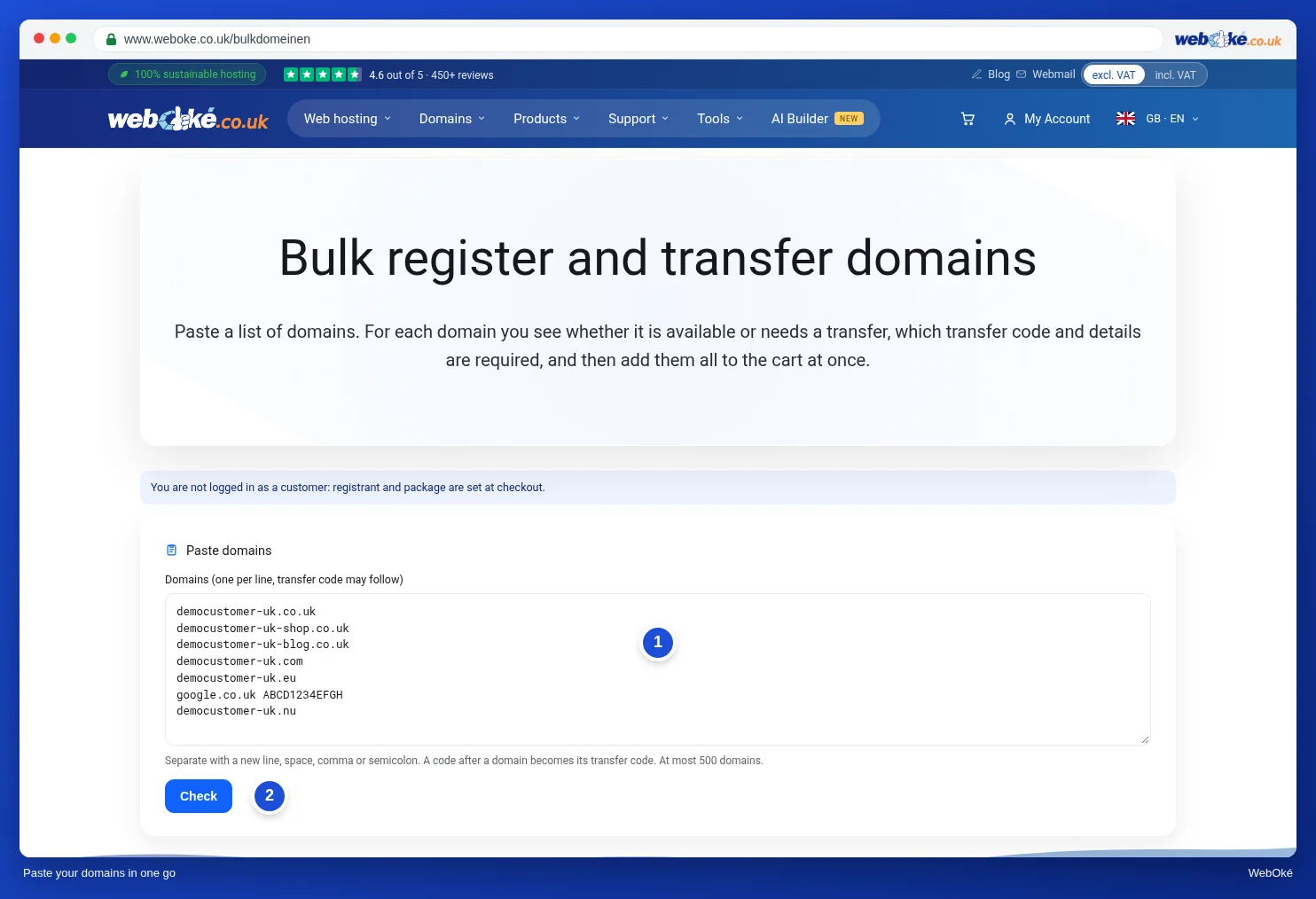
If your list contains something that isn't a domain, or an extension we don't offer, you'll see that below the button.
Step 2: check and complete
You'll get a list of all your domains. At the top, under For all domains at once, you can set something for the whole list in one go:
- Nameservers (1): choose WebOké default, or Own nameservers and enter 2 to 5. With your own nameservers, we check for each domain whether it's already known there, just as in the shopping cart.
- Enter transfer code later: turn this on and all transfers without a code will get the Later option. Domains where you already pasted a code keep that code.
- If you're logged in, you also choose the Registrant (the owner of the domains) here, and the Package you want to link the domains to. If you're not logged in, you'll arrange that at checkout.
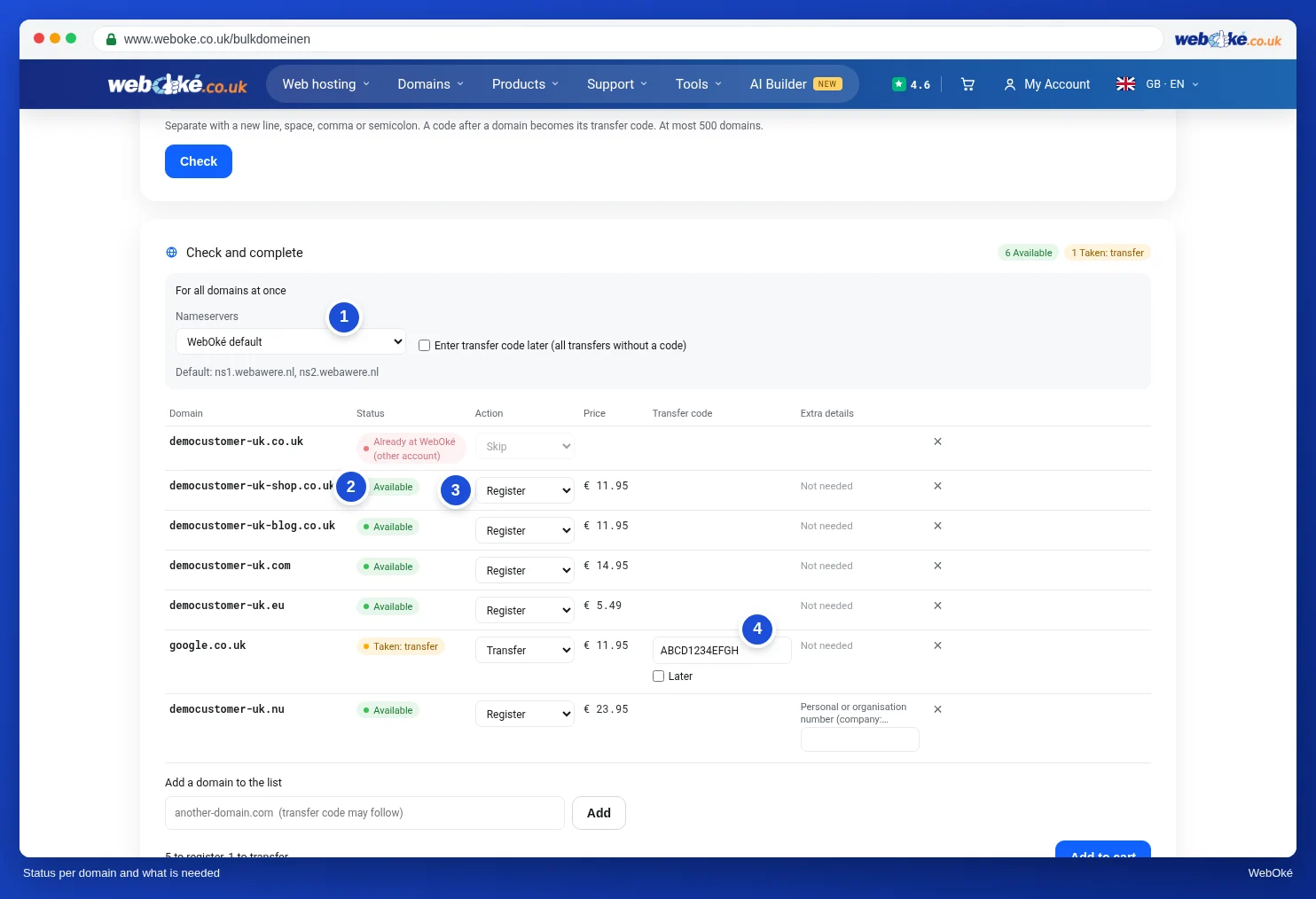
For each domain, you'll see:
- The Status (2): Available (you can register it), Taken: transfer (it's with another provider), Already in this account or Already in the cart.
- Action (3): Register, Transfer or Skip. The price is shown next to it.
- The Transfer code (4) for a transfer. If you don't have the code yet, tick Later. A .nl code is 12 characters.
- Extra details: some extensions ask for something extra, such as a personal or organisation number for .nu and .se, or a tax number for .it. Fill that in here.
Use the cross at the end to remove a domain from the list.
Step 3: into the shopping cart
- Want to add another domain? Type it below the list under Add a domain to the list (1) and click Add. You can add the transfer code after it here too.
- Click Add to cart (2).
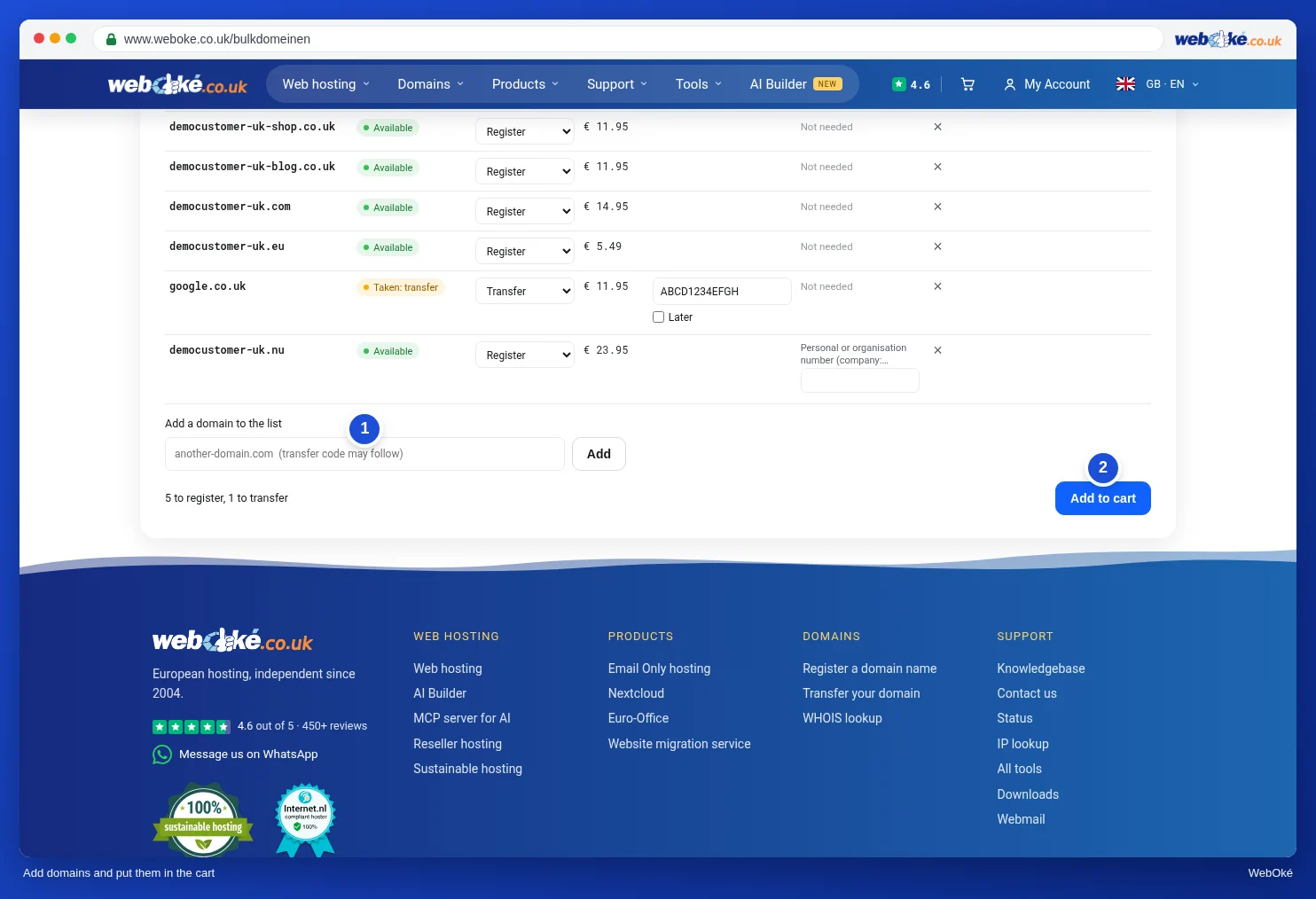
Is something wrong with a domain, for example a transfer code or a missing number? Then that line turns red with the reason next to it, and the page jumps to the first line with an error. The other domains are already in the shopping cart by then. Fix the red lines and click Add to cart again.
Then click Go to checkout. You complete your order as usual from there, see Filling in your details (private or business, VAT number) and Review, confirm and check out. In the shopping cart, you can still adjust everything for each domain, see Setting up your domain: nameservers, linking to your package and the owner.
Tip: transferring many domains and don't have all the codes yet? Then order them with Later. You start each transfer yourself as soon as you have the code, in the Transfer centre in My WebOké, see The transfer centre: transferring domains to WebOké.