
Chapter 15 · 15.8
Finding and removing duplicate customers
If you merge two address lists, or export twice from your webshop, customers can end up listed twice. In our example, the invoices for Kapsalon Knip and Bakkerij Van Dijk appear twice. Here's how to find and remove them.
Step 1: check first
Never delete blindly. Highlight the duplicate values first:
- Select the column you want to check for duplicates, for example the email addresses.
- On the Home tab, click Conditional formatting (this is what Euro-Office calls conditional formatting) and choose Duplicate/Unique.
- Choose a colour. Now you can see at a glance which values occur more than once. Sort by that column to group them together.
Step 2: remove them
- Select the whole table, including the headers.
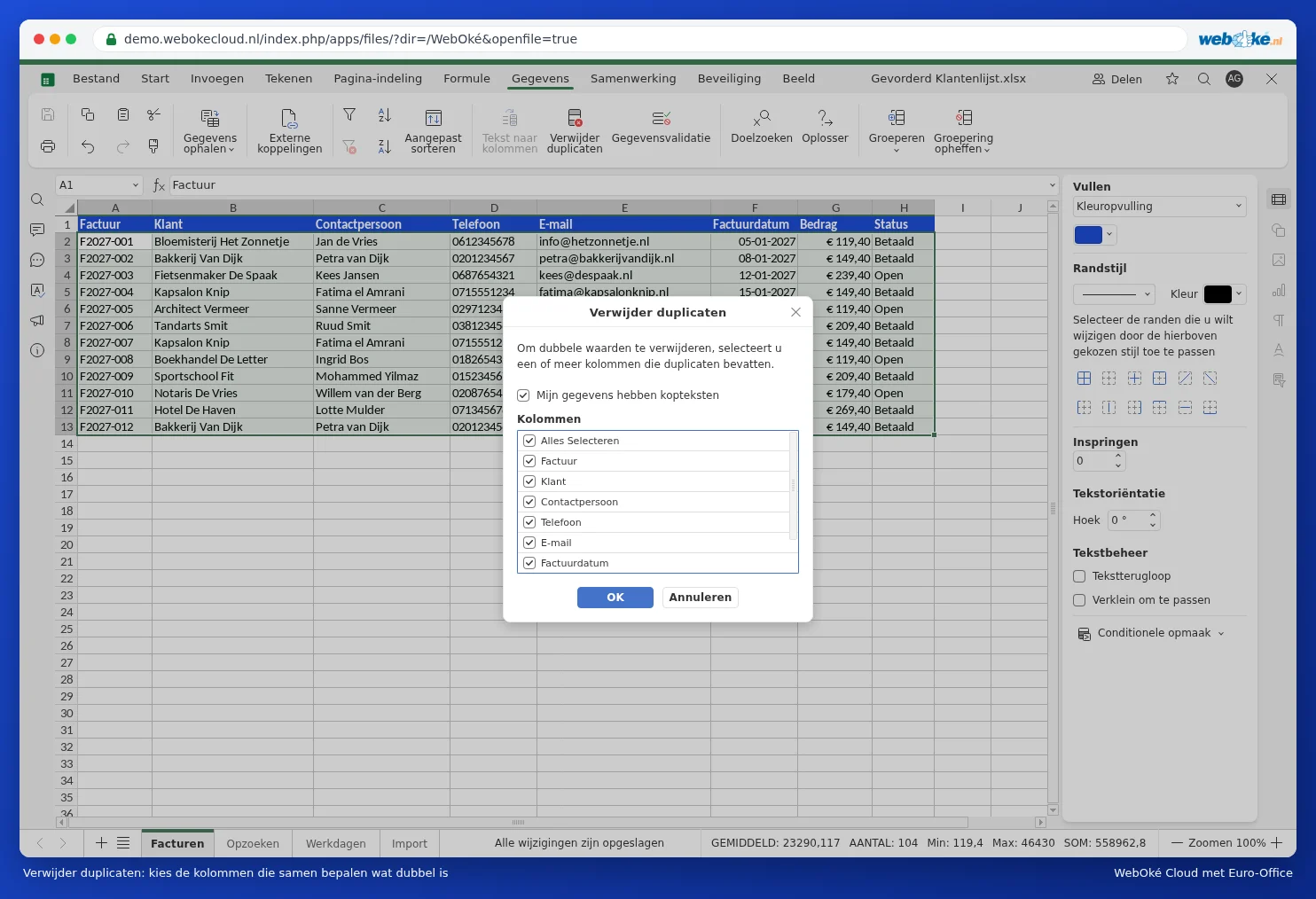
- On the Data tab, click Remove duplicates.
- Leave My data has headers ticked.
- Under Columns, only tick the columns that together determine what counts as a duplicate. If you select everything, an entire row must match exactly. If you select only Email, one row remains per email address.
- Click OK. Euro-Office will tell you how many duplicate rows it has removed.
Pitfalls
- The first row stays, later ones are removed. If you want to keep the most recent data instead, sort by date first, with the newest at the top.
- "Jan de Vries" and "jan de vries " (with a space) are different as far as the spreadsheet is concerned. Clean up spaces first with TRIM (see VLOOKUP returns #N/A: here's how to fix it).
- Made a mistake? Press Ctrl + Z straight away. Later on, you can use the file's version history instead.