
Chapter 10 · 10.2
Downloading and installing on Windows (x64 and ARM64)
This is how you set up Nextcloud Office on a Windows computer. The installation file is around 600 MB.
Which version do you need?
Nextcloud Office is available for 64-bit Windows in two versions:
- Windows x64 (1): for almost all PCs and laptops, with an Intel or AMD processor.
- Windows ARM64: only for computers with an ARM processor, such as laptops with a Snapdragon chip.
Not sure which one you need? Click Start, then Settings, System and About. Under System type you'll see "x64" or "ARM". If you're using an older 32-bit version of Windows, the program won't work; use the browser instead.
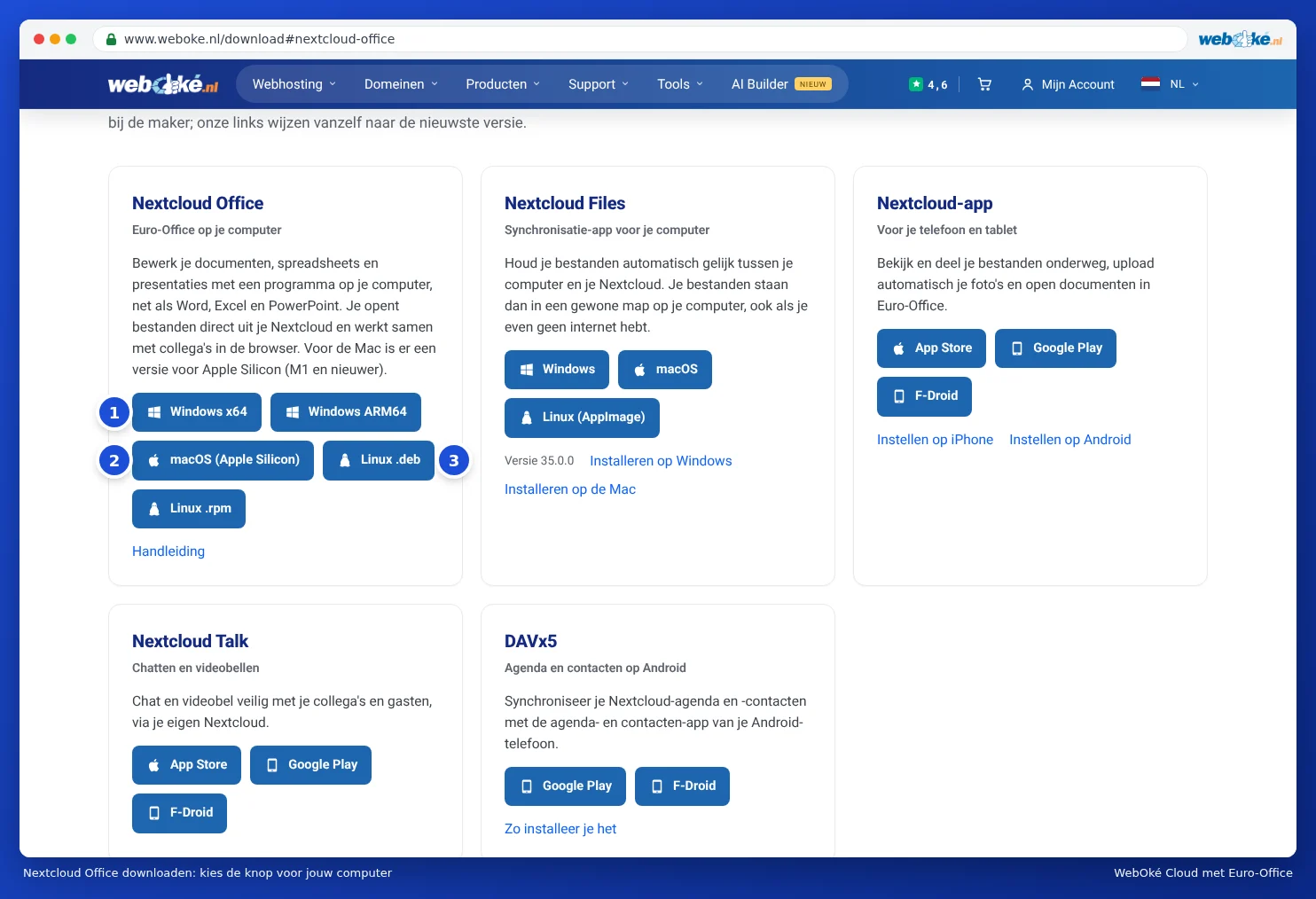
Downloading
- Go to www.weboke.nl/download.
- Under Nextcloud Office, click Windows x64 or Windows ARM64. You can also use these links directly: Windows x64 or Windows ARM64.
- The file ends up in your Downloads folder. It's named something like Nextcloud-Office-DesktopEditors-latest-windows-x64.exe.
Installing
- Double-click the downloaded file.
- Windows asks whether the program may make changes. Click Yes. You'll need administrator rights on the computer for this.
- Follow the steps in the installer. You can leave the suggested settings as they are.
- After installation, you'll find Nextcloud Office in the Start menu.
The first time you start it, you'll see the start screen. On the left you'll find options such as Create new, Recent files, Open local file, Connect to cloud and Settings. You can read how to connect the program to your WebOké Nextcloud in Linking the program to your WebOké Nextcloud.
Language and display
Is the program showing in another language than you'd like? Click Settings on the left and choose your language under Interface language. The new language takes effect after you restart the program. Under Interface theme, choose light, dark, or the same as your system.
Updating
The program can check for new versions itself. Under Settings, use Updates to decide whether this happens automatically or whether you're notified first. You can also always download the latest version via the button on our download page and install it over the old one.
Please note: on a work computer, you often can't install programs yourself. In that case, ask your system administrator, or work in the browser.